Overview
Once you've recorded a video in BombBomb, you have several ways to share it depending on where you're working — the web app, the Chrome or Edge extension, or the mobile app. This article covers every sharing method available so you can get your video in front of the right person, in the right place, quickly.
Who this applies to: All Users
Plan requirement: Core, Core + Copilot, Enterprise
From the Web App (Workspace)
- In your Workspace, find the video you want to share.
- Click the three-dot menu on the video.

- Choose your sharing method:
- Copy Share Link — copies a direct link to your video's landing page. Paste it anywhere: a CRM, LinkedIn, SMS, or any email client.

- Copy for Email — copies an animated GIF thumbnail linked to your video, ready to paste directly into an email body.

From the Edit Video Page
When you're editing a video, you have two ways to share directly from that page.
Using the Share button:
- Click the orange Share button in the top-right corner.
- Choose from:
- Copy Share Link — copies a direct link to your video's landing page.
- Copy for Email — copies an animated GIF thumbnail linked to your video for use in email.
- Share on X — opens a pre-populated X (Twitter) post with your video link.
- Share on LinkedIn — opens a pre-populated LinkedIn post with your video link.
Using the three-dot menu:
- Click the three-dot menu in the top-right corner.
- Choose Copy Share Link or Copy for Email.
From the Chrome or Edge Extension
- Click the BombBomb icon in your browser toolbar.

- Click the Videos icon to open your library.

- Find the video you want to share and click its three-dot menu.
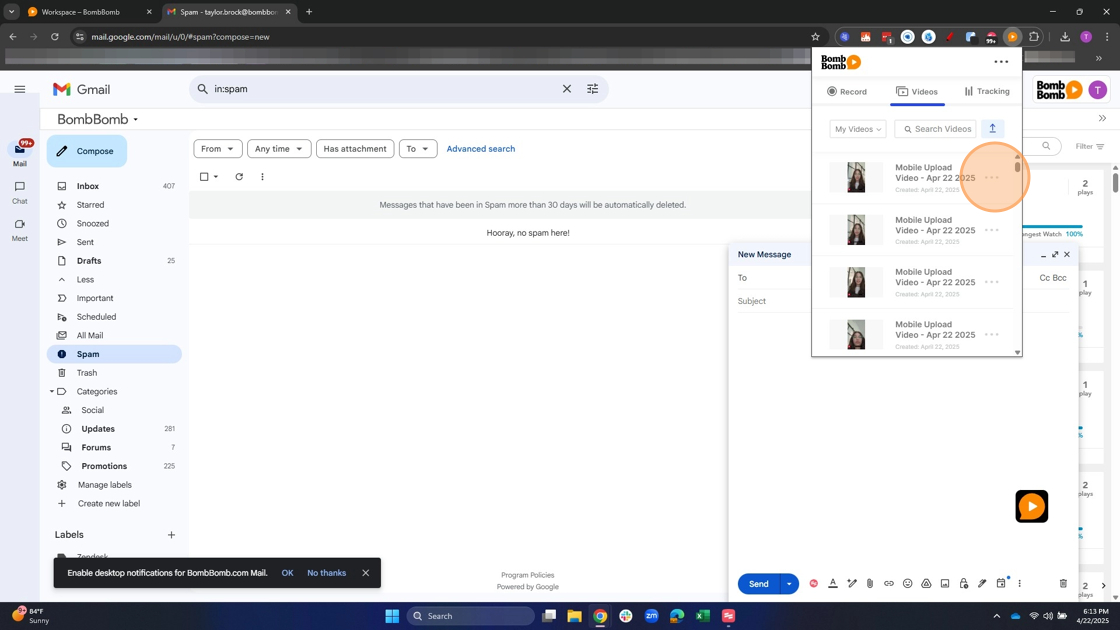
- Choose Copy Share Link or Copy for Email.

- Paste into any email client, CRM, or messaging tool.

Note: When you use Copy for Email, an animated GIF thumbnail is copied to your clipboard. When pasted into an email, it links directly to your video's landing page.
From the Mobile App (iOS and Android)
- Open the BombBomb app and tap the Videos icon.
- Tap the video you want to share.

- Choose a sharing option:

- Email — share via your device's email app.
- Text — share via SMS.
- Share — opens your device's native share sheet to send via any installed app.
Frequently Asked Questions
What's the difference between Copy Share Link and Copy for Email? Copy Share Link gives you a plain URL you can paste anywhere. Copy for Email gives you an animated GIF thumbnail that's pre-linked to your video — it's designed to be pasted directly into an email body for a more visual experience.
Can I share a video without using email? Yes. Use Copy Share Link to paste your video link into any platform — a CRM, LinkedIn message, SMS, calendar invite, or anywhere else you can paste a URL.
Can I share directly to social media? Yes, from the Edit Video page. Click the Share button and choose Share on X or Share on LinkedIn to post your video directly to those platforms.
Will my recipients need a BombBomb account to watch the video? No. Anyone with the link can watch your video — no account required.